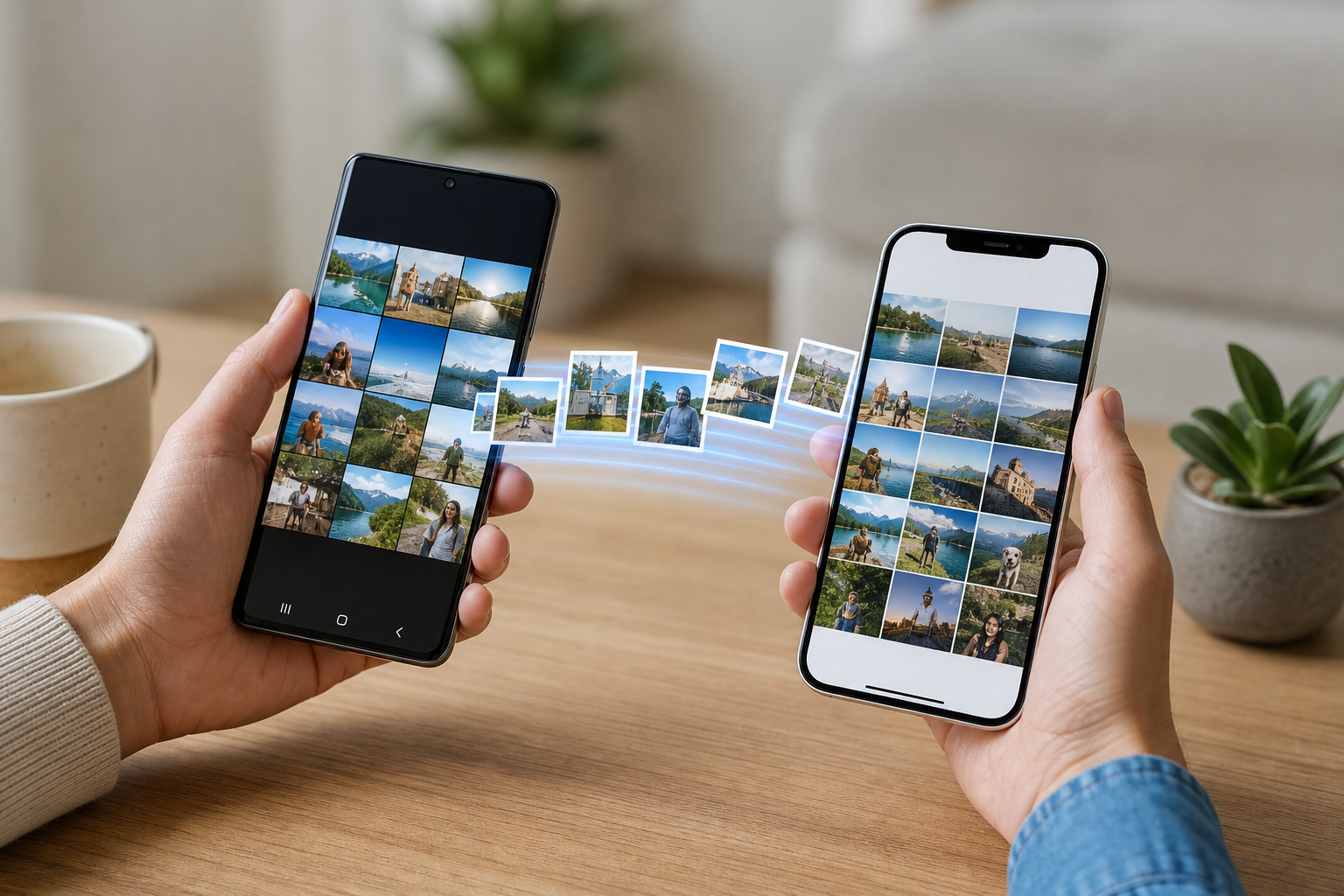

Switching mobile ecosystems within a business environment often creates a logistical challenge, particularly when managing corporate assets and professional imagery. Whether your team is migrating to a unified hardware standard or an individual executive is changing devices, knowing how to transfer photos between Android and iPhone efficiently is essential to maintain productivity and data integrity.
The process varies depending on the volume of data and the available infrastructure. While Apple and Google have historically operated in silos, modern cloud integration and dedicated migration tools have made the transition smoother. This guide outlines the most reliable methods for moving your visual data across platforms without compromising image quality or metadata.
Using Cloud Storage for Seamless Migration
Cloud-based transfers are the gold standard for B2B environments because they provide a redundant backup while moving files. Instead of relying on a physical cable, you leverage a server to synchronise data between two different operating systems.
Google Photos for Universal Access
Google Photos is perhaps the most intuitive tool for this task. Since it is available on both the Google Play Store and the Apple App Store, it acts as a neutral bridge. To begin, install the app on the Android device and ensure the "Back up & sync" feature is enabled. Once the upload is complete, sign into the same Google account on the iPhone. The images will appear automatically, allowing you to download specific albums to the local iOS gallery if needed.
iCloud and Third-Party Alternatives
While iCloud is native to Apple, transferring photos from Android into iCloud requires a web-based approach. Users can upload their Android gallery to iCloud.com via a desktop browser. Alternatively, business-grade tools like Dropbox or Microsoft OneDrive are highly effective. These platforms allow you to create a dedicated folder for "Migration Photos," upload the content from the Android device, and then sync that folder on the iPhone. This method is particularly useful for corporate users who already rely on Microsoft 365 for their daily operations.
Direct Transfer Methods for Large Libraries
When dealing with thousands of high-resolution images, cloud uploads can be slow and may consume significant data bandwidth. In these instances, direct transfers are more efficient.
The "Move to iOS" Application
Apple provides an official app called "Move to iOS" specifically designed for those switching from Android. This tool is used during the initial setup of a new iPhone. During the configuration process, you select "Move Data from Android" and enter a security code provided by the iPhone.
The app allows you to select specific data types, including the photo gallery. Because this happens over a private Wi-Fi connection created between the two devices, it avoids the need for an external internet upload. However, this method is only available during the first-time setup; if the iPhone has already been configured, a factory reset is required to use this feature.
Manual Transfer via Computer
For those who prefer a tangible backup, using a PC or Mac remains a viable option. By connecting the Android device to a computer via USB, you can copy the DCIM folder (where photos are stored) to a local hard drive. From there, you can import these files into the iPhone using iTunes or the Finder app on macOS.
This manual approach offers several advantages:
- It creates a permanent physical archive of the images.
- It does not rely on internet stability or cloud storage quotas.
- It allows for the sorting and renaming of files before they reach the new device.
- It ensures that large video files are moved without compression.
Optimising the Workflow for Business Users
In a professional context, simply moving files is not enough. You must ensure that the metadata—such as dates, locations, and timestamps—remains intact. When you learn how to transfer photos between Android and iPhone, you should also consider the organisation of those files.
Many B2B users find that transferring photos in batches is more manageable than moving a ten-year archive in one go. Sorting images into "Active Projects" and "Archives" before the transfer prevents the new device from becoming cluttered. Furthermore, verify that the image formats are compatible. While both platforms use JPEG and HEIC, some older Android devices use proprietary formats that may require conversion before they are fully compatible with the iOS ecosystem.
Managing Data Security During Transfers
Security is a primary concern for any business. When moving sensitive corporate imagery, avoid using unverified third-party "transfer apps" that request full access to your contacts and messages. Stick to official tools from Google, Apple, or established enterprise cloud providers.
If you are using a public Wi-Fi network for cloud synchronisation, ensure a VPN is active to encrypt the data stream. For the highest level of security, the manual USB transfer method is recommended, as it keeps the data entirely offline and removes the risk of interception during transit.
Frequently Asked Questions
Will I lose the quality of my photos during the transfer?
If you use direct cable transfers or high-quality cloud settings, the original resolution is preserved. However, some social media-based transfer methods compress images, so avoid using messaging apps for professional archives.
Do I need a subscription to move my photos?
Not necessarily, but cloud services have storage limits. If your library exceeds the free tier of Google Drive or iCloud, you may need a temporary paid plan to accommodate the full volume of data.
How long does a typical photo transfer take?
The duration depends on the total file size and connection speed. A few hundred photos may take minutes via cloud sync, while several thousand high-resolution images via "Move to iOS" can take an hour or more.
Can I transfer photos without a computer?
Yes, you can use the "Move to iOS" app or cloud services like Google Photos and OneDrive to move imagery directly between the two handheld devices using a wireless connection.
What happens to my photos on the old Android device?
The transfer process copies the data rather than moving it. Your original photos will remain on the Android device until you manually delete them or factory reset the phone for disposal or resale.