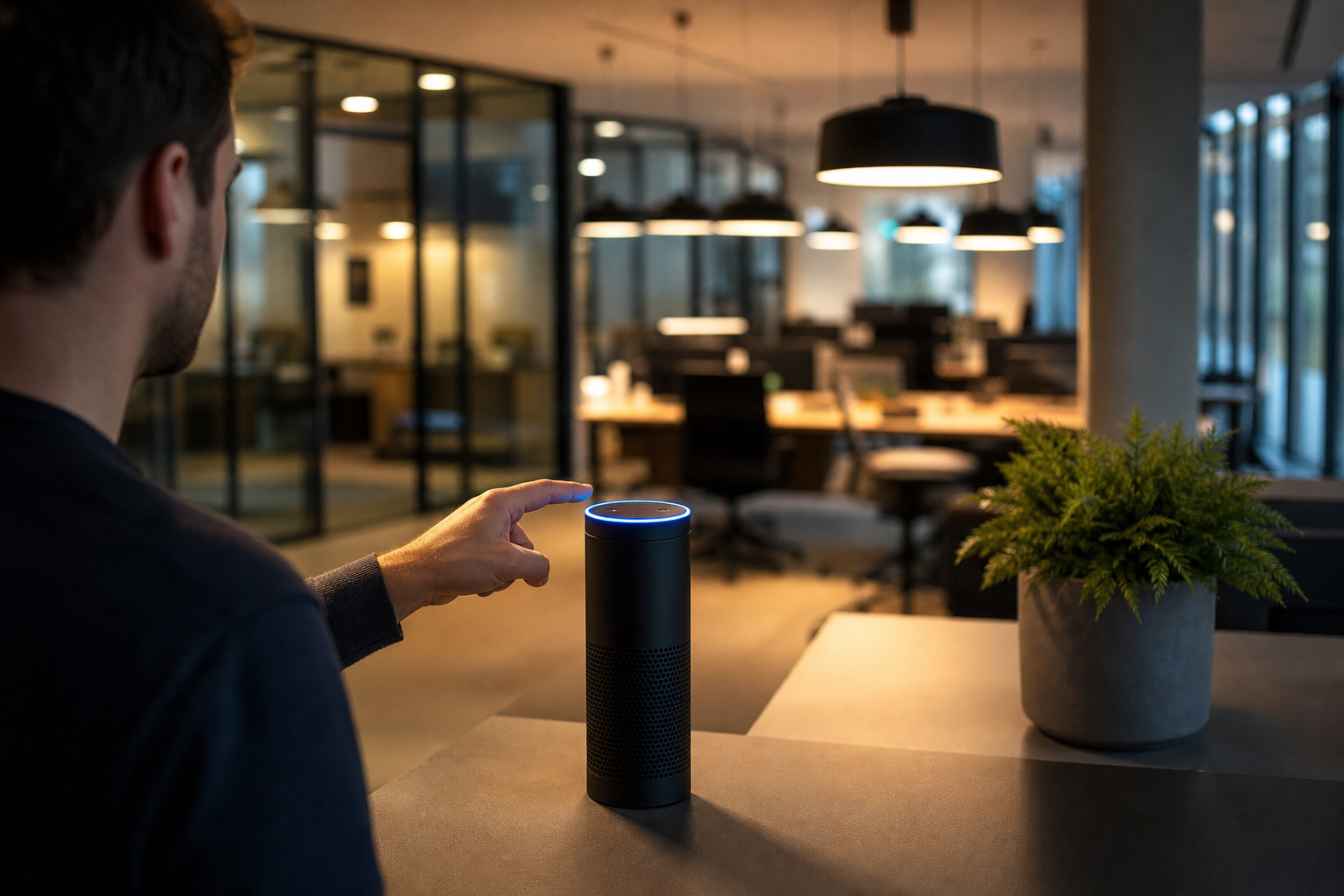

Integrating smart lighting into a professional environment enhances operational efficiency and reduces energy overheads. For many UK businesses, the Amazon Alexa ecosystem provides a scalable way to manage office ambiance and security through voice commands and automated schedules. Learning how to connect smart lights to Alexa allows facility managers and business owners to streamline their workspace without needing complex hard-wired installations.
Preparing Your Business Infrastructure for Smart Lighting
Before attempting the integration, it is essential to ensure your hardware is compatible and your network can handle the additional load. In a B2B context, network stability is paramount to avoid disruptions in daily operations.
First, verify that your smart bulbs or lighting strips are "Works with Alexa" certified. While many brands are compatible, certified products generally offer a more seamless pairing process. You will also need a stable Wi-Fi connection. For larger offices, a mesh network is often preferable to a single router to ensure that lights in distant meeting rooms or warehouses remain responsive.
Ensure you have the following ready:
- A compatible Amazon Echo device or the Alexa app installed on a company tablet.
- The manufacturer's native app for the smart lights (e.g., Philips Hue, LIFX, or TP-Link Kasa).
- Your business Wi-Fi credentials and administrative access to the router.
- The physical smart bulbs installed in the correct fixtures.
Step-by-Step Guide on How to Connect Smart Lights to Alexa
The process of connecting your lighting system typically involves a bridge between the manufacturer's software and the Amazon ecosystem. Following these steps ensures a professional setup that is easy for staff to use.
Installing the Manufacturer's Application
Most smart lights require an initial setup through their own proprietary app. Download the app associated with your lighting brand from the App Store or Google Play. Create a business account and follow the prompts to add your devices. This stage is where you assign names to your lights. Instead of using generic terms like "Light 1," use descriptive locations such as "Boardroom Main" or "Reception Desk." This clarity prevents errors when issuing voice commands later.
Enabling the Alexa Skill
Once the lights are functioning within the manufacturer's app, you must link that account to Alexa. Open the Alexa app, navigate to the "More" menu, and select "Skills & Games." Search for the brand of your lights and select "Enable to Use." You will be prompted to sign in with the credentials you created in the manufacturer's app. This handshake allows Alexa to send commands to the lighting hardware.
Discovering Devices
After the skill is enabled, Alexa needs to scan your network to find the newly linked hardware. You can do this manually in the app under "Devices" by selecting "Add Device," or simply by saying, "Alexa, discover my devices." The system will search for a few minutes and then list all the connected bulbs. Once discovered, you can group these lights into "Rooms" within the Alexa app to control entire sections of the office with a single command.
Optimising Smart Lighting for Professional Environments
Connecting the hardware is only the first step. To derive real value from a smart system, businesses should implement routines and groups that align with their operational hours.
Using groups allows you to manage lighting zones efficiently. For example, creating a "Front Office" group ensures that all reception and waiting area lights turn on simultaneously at 8:30 am. This removes the need for staff to manually toggle multiple switches every morning.
Furthermore, the use of "Routines" can significantly lower electricity bills. You can programme a routine that dims the lights in the breakroom during peak sunlight hours or ensures all non-essential lighting is deactivated at 6:00 pm. This automation reduces human error and contributes to a more sustainable business model.
When considering the broader scope of office automation, understanding how to connect smart lights to Alexa is a foundational step toward a fully integrated smart office. By combining lighting with other smart sensors or thermostats, a business can create an environment that adapts to the number of people in a room, further optimising energy consumption and employee comfort.
Troubleshooting Common Connection Issues
Even with high-end hardware, connectivity issues can arise in a busy office environment. Most problems stem from network interference or incorrect account linking.
If Alexa cannot find your devices, check if the bulbs are in "pairing mode." This usually involves toggling the physical light switch on and off a specific number of times until the bulb flashes. Additionally, ensure that your Echo device and the smart lights are on the same Wi-Fi frequency. Many smart bulbs only operate on 2.4 GHz bands, whereas modern business routers often default to 5 GHz.
If the lights respond slowly, consider the placement of your Echo devices. In a large open-plan office, a single Alexa device may struggle to hear commands or maintain a strong signal to distant bulbs. Adding an additional Echo Dot in a remote wing of the building often resolves latency issues.
Frequently Asked Questions
Do I need a hub to connect my smart lights to Alexa?
Whether a hub is required depends entirely on the communication protocol of your bulbs. Zigbee or Z-Wave lights require a bridge or a hub to communicate with the internet, whereas Wi-Fi bulbs connect directly to your router. Some high-end Echo devices have a built-in Zigbee hub, removing the need for extra hardware.
Can multiple employees control the office lights via Alexa?
Yes, multiple people can control the lights if they have access to the same Alexa-enabled account or if the devices are shared via an Amazon Household. For business security, it is recommended to use a dedicated company account rather than a personal one to maintain professional boundaries and control.
Will my smart lights still work if the internet goes down?
If your internet connection fails, you will lose the ability to use voice commands through Alexa and remote control via apps. However, the lights will still function as traditional lamps when operated by a physical wall switch, ensuring your business remains operational during a network outage.
How many smart bulbs can one Alexa system manage?
Amazon Alexa can manage a vast number of devices, but the limit is often dictated by your Wi-Fi router's capacity rather than the Alexa software. For businesses installing dozens of bulbs, using a dedicated VLAN for IoT devices or employing a hub-based system is advisable to prevent network congestion.
Is it secure to use voice-controlled lighting in a business?
Smart lighting is generally secure, provided you use strong, unique passwords for your manufacturer accounts and keep your router firmware updated. To enhance security, ensure that your smart devices are on a separate guest network to isolate them from sensitive company data and servers.