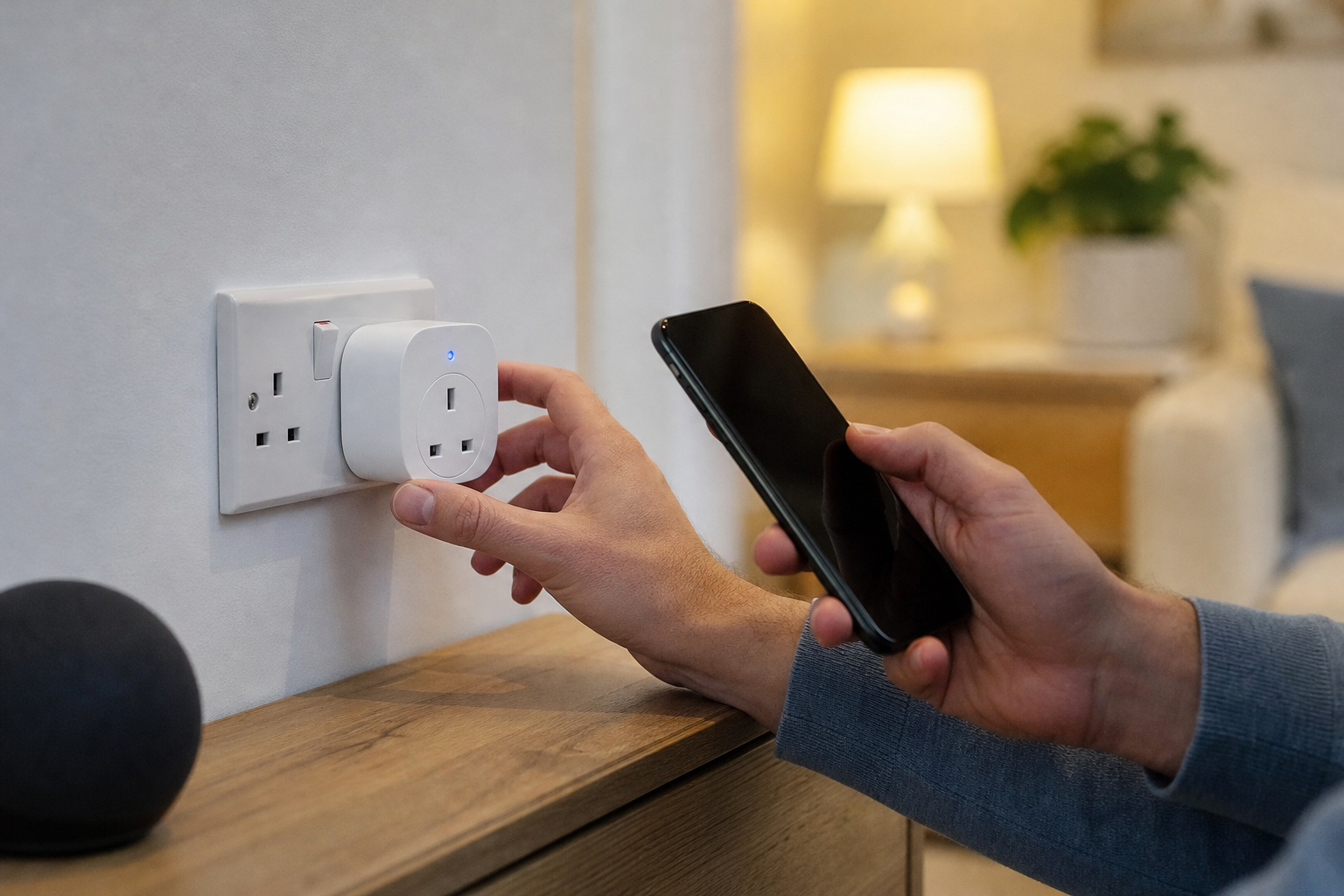

Integrating smart technology into a commercial environment can significantly reduce operational costs and improve energy efficiency. For many business owners and facility managers, the first step toward a smarter office is the installation of connected power outlets. Learning how to set up a smart plug for the first time is a straightforward process, yet doing it correctly ensures a stable connection and maximum security for your business network.
Preparing Your Workspace for Smart Integration
Before plugging in any hardware, it is essential to ensure your infrastructure is ready. In a B2B context, the network environment is often more complex than a home setup, involving firewalls, VLANs, and multiple access points.
First, verify that your Wi-Fi signal is strong at the specific location where the plug will be installed. If the plug is placed behind a heavy filing cabinet or in a remote corner of a warehouse, the connection may drop, leading to unreliable automation.
Next, check your router's frequency. Most smart plugs operate exclusively on a 2.4GHz frequency rather than the faster 5GHz band. If your office uses a combined SSID (where both bands share one name), you may need to temporarily separate them or ensure your device is compatible with band-steering.
Finally, gather the necessary credentials. You will need:
- The administrative login for your Wi-Fi network.
- A smartphone or tablet with the latest OS updates.
- The specific manufacturer's application downloaded from a trusted app store.
- A stable internet connection to facilitate the initial firmware update.
Step-by-Step Guide on How to Set Up a Smart Plug for the First Time
Once the environment is prepared, the physical and digital installation can begin. While different brands have slight variations, the core logic remains consistent across the industry.
Physical Installation and Powering Up
Begin by inserting the smart plug into a standard UK wall socket. Ensure the socket is fully functional and not part of a daisy-chained extension lead, as this can create electrical hazards or cause voltage drops that interfere with the plug's internal radio. Once plugged in, look for a flashing LED indicator. This light usually signals that the device is in "pairing mode" and is broadcasting its own temporary signal to be discovered by your mobile device.
Digital Configuration and App Pairing
Open the dedicated application on your smartphone. You will likely be asked to create a business account or sign in. Navigate to the "Add Device" or "+" icon. The app will scan for nearby hardware via Bluetooth or a temporary Wi-Fi hotspot. When the plug appears in the list, select it and enter your office Wi-Fi password.
Wait for the synchronisation process to complete. During this stage, the plug connects to the manufacturer's cloud server and registers its unique ID to your account. Once the LED stops flashing and remains steady, the device is officially online.
Optimising Smart Plugs for Business Efficiency
Simply connecting the device is only the beginning. To derive real value in a professional setting, you must configure the plug to serve a specific business purpose.
Many businesses use smart plugs to manage "vampire loads"—devices that consume power even when switched off. By scheduling a smart plug to cut power to coffee machines, printers, and water coolers at 6:00 PM and restore it at 8:00 AM, a company can see a measurable dip in monthly utility bills.
Another critical aspect is naming conventions. In a large office, naming a device "Plug 1" is unhelpful. Instead, use a structured format such as "Floor1_Kitchen_CoffeeMachine" or "Warehouse_ZoneB_Fan". This ensures that any staff member with administrative access can identify the device immediately without guessing.
Implementing Automation and Scenes
Advanced users can group multiple plugs into "scenes". For example, a "Closing Time" scene could simultaneously turn off all non-essential electronics across three different rooms with a single command. This reduces the manual workload for the last person leaving the building.
Security Considerations for B2B Networks
Security is paramount when adding IoT devices to a corporate network. It is highly recommended to place smart plugs on a guest network or a dedicated IoT VLAN. This isolates the devices from your primary servers and sensitive client data, ensuring that if a smart plug has a vulnerability, it cannot be used as a gateway to your main business files.
Troubleshooting Common Connection Issues
Even with a clear process, technical glitches can occur. Most issues stem from network interference or incorrect settings during the initial handshake.
If the device fails to connect, the first step is a hard reset. This is usually achieved by holding the physical power button on the plug for ten seconds until the light flashes rapidly. This clears any cached data and puts the device back into pairing mode.
If the app cannot find the plug, check your phone's permissions. Ensure that Bluetooth and Location Services are enabled, as these are required by most Android and iOS apps to discover local hardware. Additionally, ensure that your VPN is disabled during the setup process, as a VPN can mask your local IP address and prevent the app from communicating with the plug.
Frequently Asked Questions
Can I use a smart plug for high-power industrial machinery?
No, most commercial smart plugs are designed for light-to-medium loads like lamps or monitors. Always check the maximum wattage rating on the device casing to avoid overheating or electrical fires in a business setting.
Do smart plugs work if the internet connection goes down?
Most plugs will retain their current state (on or off) during an outage, but you will lose remote control and scheduling capabilities until the internet connection is restored to the building.
Is it possible to control smart plugs without a smartphone?
Yes, if you integrate the plugs with a voice assistant or a centralised smart hub, you can use voice commands or physical smart buttons to toggle the power without needing a phone.
How many smart plugs can one office router support?
This depends on the router's capacity, but most business-grade routers can handle dozens of IoT devices. If you notice lag, consider upgrading to a mesh system or adding an additional access point.
Can these devices be managed by multiple staff members?
Most manufacturer apps allow you to share device access with other email addresses. This allows a facility manager to grant control to specific employees without sharing the primary account password.